Image, sketch, or screenshot to floor plan

Image to Floor Plan Generator

Start from an existing layout image, rough sketch, or screenshot. BuildFloorPlan helps turn visual references into cleaner first-pass floor plan drafts for review and revision.
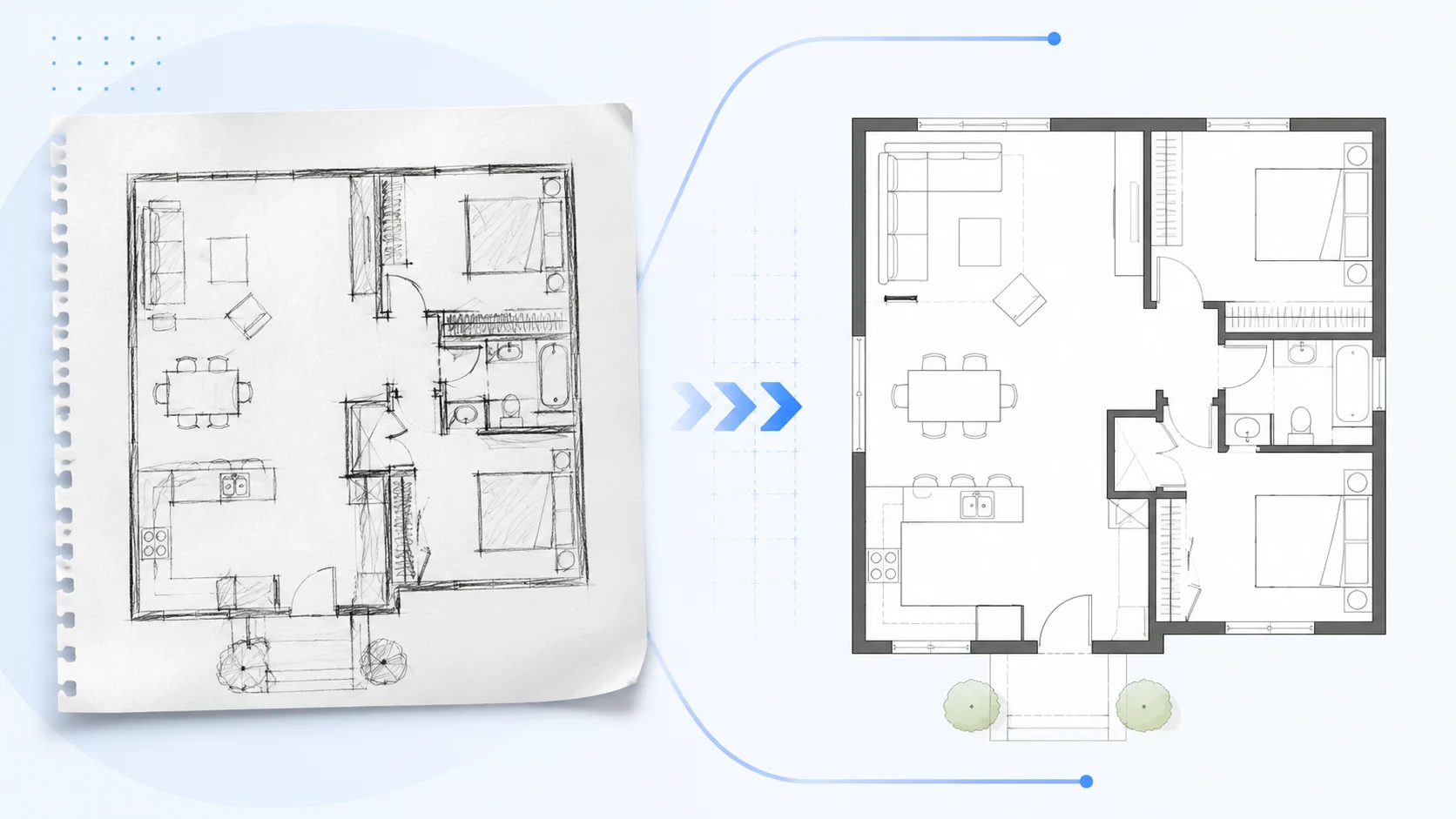
Image to floor planSketch and image input2D, 2.5D, and 3D-style drafts
Outputs

Compare the visual source in multiple floor plan styles

Turn the same uploaded source into a Technical 2D draft, a 2.5D layout, or a 3D-style preview.

AI generated technical 2D floor plan preview
Readable walls, openings, and circulation
Cleanup

Technical 2D draft

Create a cleaner top-down plan from a rough image, sketch, or screenshot.

AI generated 2.5D floor plan layout preview
Top-down 2.5D view with wall thickness and room hierarchy
Presentation

2.5D layout concept

Use a more visual output when the plan needs to be easier to explain.

AI generated isometric 3D floor plan preview
Spatial feel before a heavier 3D workflow
Spatial review

3D-style preview

Review the uploaded layout as a more spatial concept before deeper modeling.

After upload

What you can do after upload

Use the uploaded source as a starting point for cleanup, revision, comparison, and discussion.

Clean up a rough layout

Generate a clearer plan from a messy or informal source image.

Useful when a sketch or screenshot needs to become easier to review.

Explore revisions

Ask for different room arrangements, improved circulation, or more private zones.

Use the revised draft to compare layout directions.

Prepare for discussion

Use the result for family discussion, client review, team alignment, or early renovation planning.

The goal is to make the next conversation clearer, not to produce final construction documents.

Examples

Image-to-floor-plan examples

Use these example requests after uploading an image, sketch, or screenshot.

Upload a rough apartment sketch and generate a cleaner 2D floor plan with three bedrooms and two bathrooms.

Upload a house layout image and ask for a more private master bedroom and clearer circulation.

Upload a restaurant layout reference and generate a cleaner version with dining, kitchen, restrooms, and storage.

Upload an office plan screenshot and create a clearer draft with meeting room, workstations, and reception.

Best fit

Turn visual references into clearer floor plan drafts

Use BuildFloorPlan when you already have a rough drawing, screenshot, reference image, or existing plan but need a cleaner layout direction.

Source image01

Start from what you already have

Upload the visual source, describe what you want, and generate a reviewable draft.

This is useful when a source layout exists but is messy, informal, or not ready for discussion.

Revision path02

Explore changes without redrawing from zero

Ask for different room arrangements, improved circulation, or more private zones.

Use the output to compare directions before deeper technical work.

Realistic scope03

Use it for concept review, not measured accuracy

The generated draft is for first-pass review and revision, not guaranteed measured construction accuracy.

Use a professional workflow for permit drawings, code review, or final documentation.

Starting points

Supported starting points

Start from a visual source when words alone are not enough to describe the layout.

Image01

Floor plan image

Use an existing layout image as a source for a cleaner first-pass floor plan draft.

Sketch02

Hand-drawn sketch

Turn a rough sketch into a more readable layout concept for early discussion.

Reference03

Screenshot or reference

Start from a screenshot, inspiration image, or visual reference when you want a clearer planning direction.

Photo04

Room or plan photo

Use a clear photo of a floor plan or layout reference when you want a faster visual revision path.

How it works

How to create a floor plan from an image

Upload a source image, describe the direction, then generate a cleaner first-pass plan.

01

Upload your visual source

Start from an image, sketch, or screenshot of a floor plan or layout reference.

  • Use an existing plan image
  • Use a rough hand sketch
  • Use a screenshot or reference image
02

Describe what should change

Ask for cleanup, clearer room organization, improved circulation, or a different output style.

  • Clean up messy layouts
  • Explore revisions
  • Compare output styles
03

Review the generated draft

Use the result for discussion, comparison, or another round of revision.

  • Good for early renovation planning
  • Useful for client or team review
  • Not a measured construction drawing
FAQ

Image to floor plan FAQ

Common questions about turning images, sketches, and screenshots into floor plan drafts.

Can I generate a floor plan from an image?

Yes. Upload a floor plan image or visual reference, describe the result you want, and BuildFloorPlan can create a cleaner first-pass draft.

Can I upload a hand-drawn sketch?

Yes. A hand-drawn sketch can be used as source material for a more readable layout concept.

Can I use a screenshot or reference image?

Yes. Screenshots and visual references can help guide the layout direction, especially when you describe what should be preserved or changed.

Can I edit the layout after uploading an image?

Yes. Use the editor workflow to describe changes, compare revised drafts, and continue refining the layout direction.

Is the generated plan accurate enough for construction?

No. Results are for first-pass review, concept exploration, and revision, not formal construction drawings or guaranteed measured accuracy.

Start now

Generate a floor plan from an image

Upload a visual reference, describe what you want, and create a cleaner first-pass layout draft.